To turn a road trip map planner route into a strong multi-stop route video, keep the places that mark a new chapter, remove navigation-only waypoints, choose a car or motorhome, and pace each leg so the road trip recap stays easy to follow.
A road trip map planner optimizes directions, timing and logistics. A road trip animation communicates the shape and feeling of the drive. The source route can be the same; the editing goal is different.
Start with the route you already planned
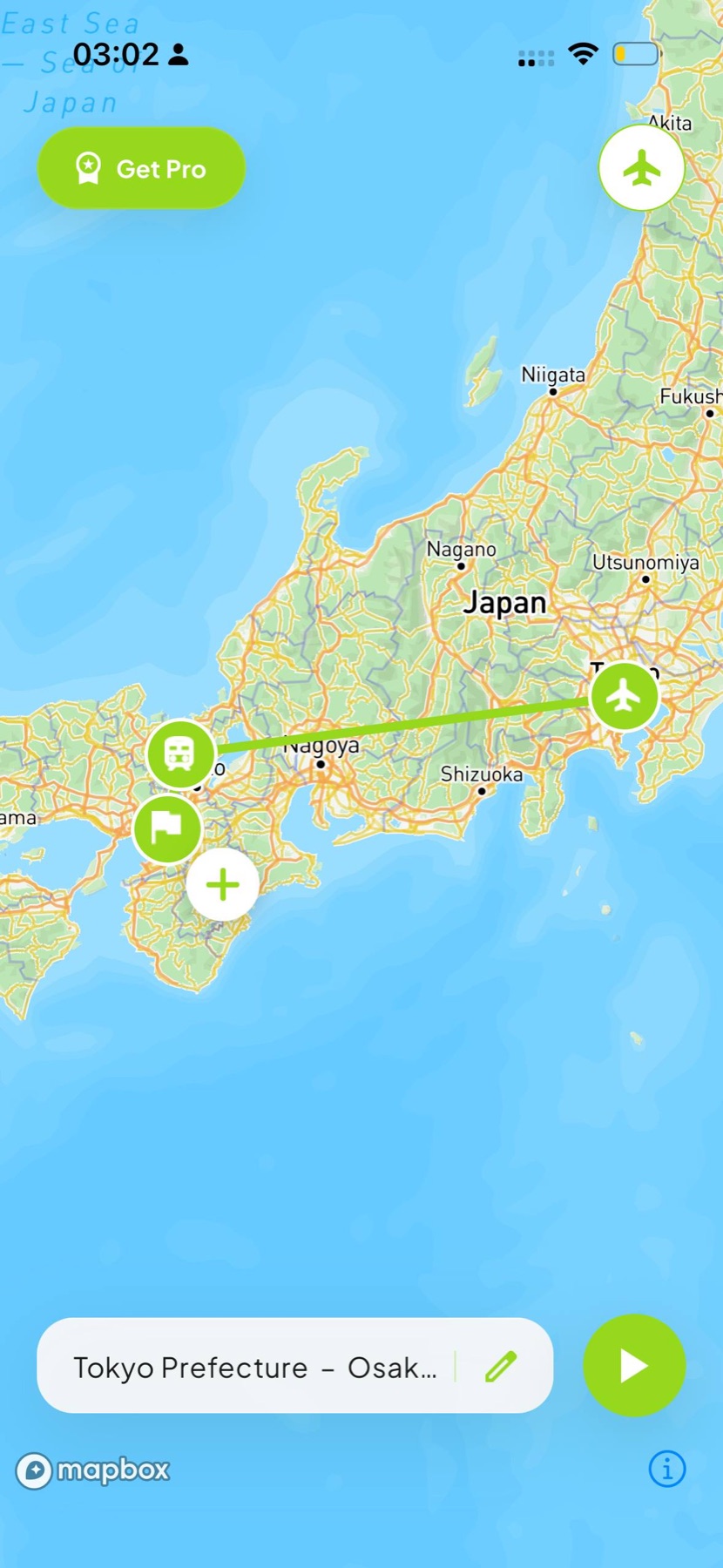
If the road trip exists in Google Maps, begin with that link instead of rebuilding every place from memory. In Roam Reels, you can paste a Google Maps link into the route builder, then edit the imported stops for the story. You can also enter places manually when the route changed along the way.
This is where a travel router and a map animation maker serve different jobs. The router helps calculate the journey. The animation maker turns the meaningful parts into travel content.
Keep chapter stops, not every stop
A useful road trip map may contain hotels, fuel stops, restaurants, trailheads and every overnight stay. An effective route video rarely needs all of them. Begin by grouping the journey into chapters.
Good chapter stops often include:
- The starting city and final destination
- A border, ferry crossing or major change in landscape
- The town where the direction of travel changes
- A park, coast or landmark that defines a leg
- An overnight stop that genuinely shaped the trip
Then remove locations that only helped with navigation. The goal is not to hide the real route; it is to make the route legible at the speed of a short video.
If two stops are close together and tell the same part of the story, keep the one your audience is more likely to recognize.
Use geography to decide the framing
A cross-country drive needs a wider camera than a weekend route between neighboring towns. Preview the whole path and check whether the map labels that matter still fit comfortably. If the route becomes too compressed, divide the road trip into regional chapters and export several clips.
For a Europe travel map, borders and country names may carry useful context. For a coastal route, the shoreline may be the strongest visual. Choose the map style and zoom level around the geographic cue that makes the journey recognizable.
Choose a vehicle that matches the memory
Use the car when the road and the stops define the trip. Use the motorhome when the vehicle itself was part of the experience. If the road trip included a ferry, train or flight, consider whether the transport change deserves a separate scene.
Accuracy matters, but so does clarity. A model should be large enough to read on a phone without covering the path ahead. Preview the video at roughly the size people will actually watch it.
Set the path and pace
A road trip often has more visual detail than a point-to-point flight, so give the path enough contrast to survive the map underneath it. A clean solid line is usually the safest choice.
Long distance does not automatically mean a long video. What matters is the number of story beats. Let the model arrive at each important stop clearly, but move through uneventful stretches faster.
Build the route video around the footage
Decide whether the map is the opening, a transition or the full story. An opening map can orient the viewer before the first travel clip. A short map between locations can explain a change that the footage cannot. A full route animation works well for a trip recap or travel wrapped.
Exporting a standard 1080p MP4 gives you flexibility. Share the animation as it is, or place it between photos and video clips in your usual editor.
Road trip animation checklist
- Import or enter the real route
- Group the drive into story chapters
- Remove navigation-only waypoints
- Check that geography and labels remain readable
- Choose the car or motorhome model
- Preview at phone size
- Export in the final post's aspect ratio
Your route, in motion
Make the drive part of the story.
Roam Reels brings Google Maps link import, transport models and customizable route videos to iPhone.