To make a travel map video on your phone, define the route, remove unnecessary waypoints, choose a car, plane, train or boat, set the path style and pacing, preview the motion, then export the travel route animation video in the format where you plan to share it.
The best map animation is not the one with the most stops. It is the one where a viewer can understand where the trip starts, how it moves and where it ends before the video is over.
1. Choose one clear travel route
Start with the journey you actually want the viewer to remember. That might be a three-city train trip, a flight across the Atlantic or a week-long drive down the coast. A single animation can contain several legs, but they should belong to the same story.
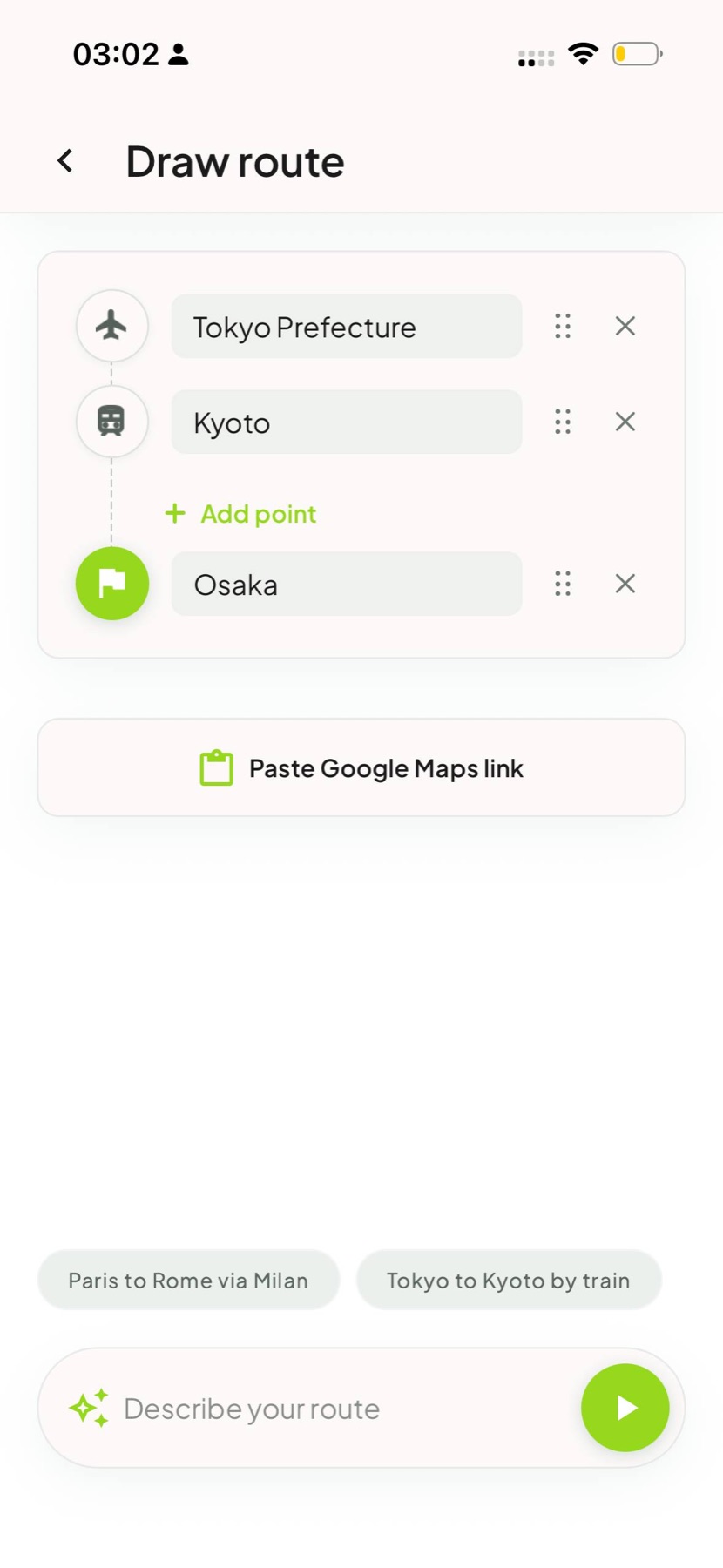
You can build the route by adding places manually. If you already planned the trip in Google Maps, a compatible map animation maker can save time by using that link as the starting point. Roam Reels also lets you describe a route in plain language, such as “Tokyo to Kyoto by train, then Osaka,” before you refine the stops.
Think in story beats: start, meaningful changes, finish. A navigation instruction is not automatically a storytelling moment.
2. Edit the stops for the story—not the turn-by-turn directions
A travel route can include dozens of technical waypoints. A travel story usually needs far fewer. Keep destinations that change the meaning of the journey: the city where you arrived, the island you crossed to, the national park that shaped the road trip, or the final place where the route resolves.
Remove service stations, motorway junctions and minor detours unless the detour is the point. This makes the map route animation easier to read on a phone screen and gives every remaining label more room.
A useful stop test
- Would you mention the place when telling a friend about the trip?
- Does it change the transport mode or direction?
- Does it divide a long route into an understandable chapter?
- Will the label still be readable in a vertical video?
3. Match the transport model to the journey
The moving model does more than decorate the map. It tells the viewer how the distance felt. A plane signals a long jump; a train suggests a connected overland journey; a car or motorhome makes the road itself part of the memory.
If one route combines several transport modes, split it into separate clips when the change matters. A flight into Italy and a train through the country often read better as two purposeful scenes than one vehicle pretending to do both.
4. Set the pacing and output format
Vertical 9:16 is the natural choice for Instagram Reels, TikTok and Stories. A landscape format can work better inside a longer travel video, while a square or portrait crop may suit a feed post. Choose the destination first so labels and route lines do not end up outside the visible area.
Then set the duration. Short routes can move quickly. Long, multi-stop journeys need enough time for the viewer to register each transition. As a starting point, allow roughly two seconds per meaningful leg, then preview the result rather than treating that as a fixed rule.
Keep the visual hierarchy simple
- Use a path color that separates clearly from the map.
- Make the vehicle visible without covering city labels.
- Show country flags only when crossing borders adds context.
- Use one map style consistently within a short sequence.
5. Preview the full animation before export
Watch once for comprehension rather than aesthetics. Can you identify the start and finish? Do labels stay visible long enough? Does the vehicle ever disappear against the map? Then watch again for rhythm. Small duration or model-size changes are often more useful than adding another visual effect.
Roam Reels exports the finished travel map animation as a 1080p MP4. That gives you a standard video file for your camera roll and makes it easy to combine the route with travel footage, photos, captions or music in the editor you already use.
Animated travel map checklist
- One journey with a clear start and finish
- Only the stops that matter to the story
- A vehicle that matches the real movement
- A path with enough contrast
- A format chosen for the publishing channel
- A complete preview before the final export
Make the route move
Create the map before the memory fades.
Roam Reels brings route building, map customization and 1080p video export to iPhone.